CS2 to Valorant Sensitivity: Converter, Formula and DPI
10 novembre 2026 · 2 min de lecture
Sur cette page
At the same DPI, our converter calculates Valorant sensitivity as CS2 sensitivity × 0.022 ÷ 0.07, or approximately CS2 sensitivity ÷ 3.181818. It matches the modelled physical distance for a hipfire turn using the yaw values documented in the tool.
Open the CS2 sensitivity converter for both directions and different DPI values. This is a starting point for mouse setup, not a claim that both games will feel identical.
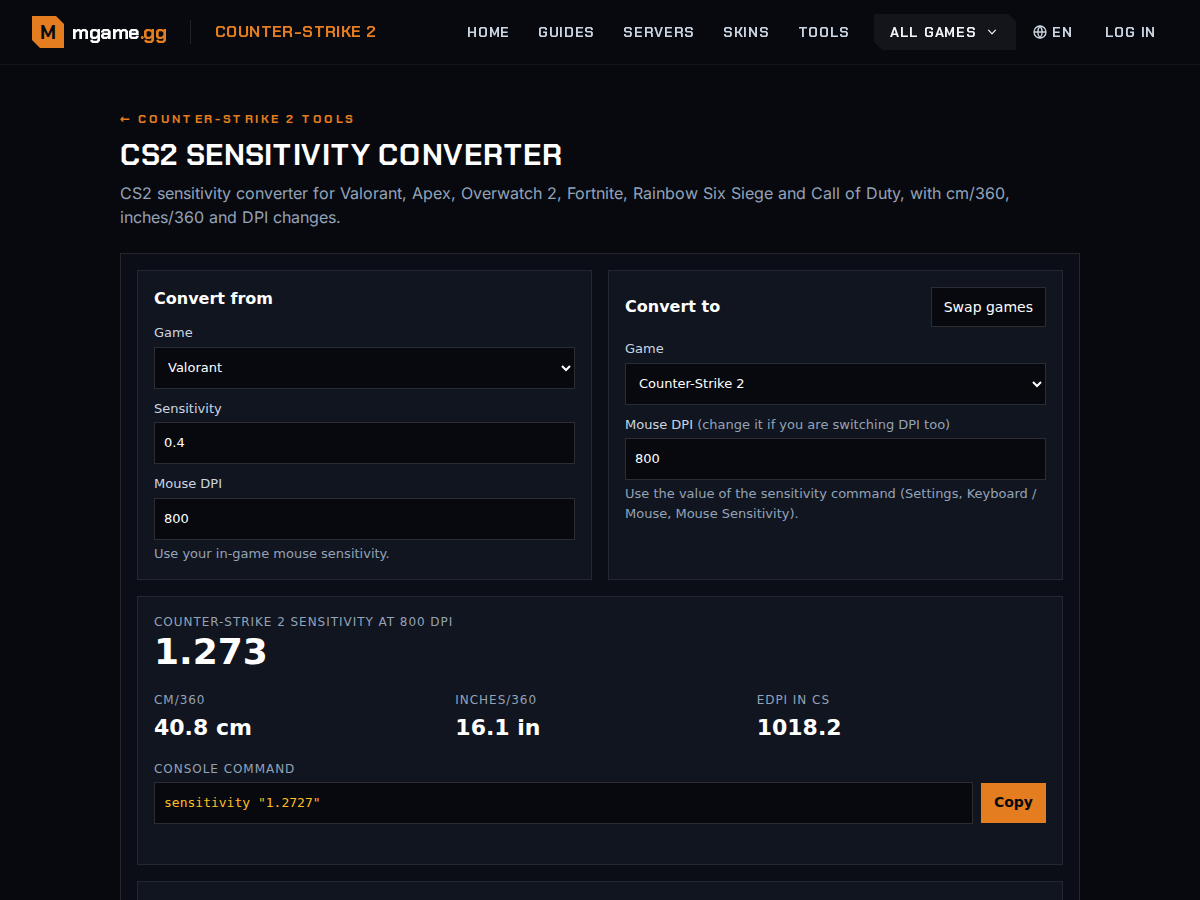
Screenshot of the mgame converter.
CS2 to Valorant examples
| CS2 sensitivity | Valorant result at the same DPI |
|---|---|
| 0.8 | 0.2514 |
| 1.0 | 0.3143 |
| 1.5 | 0.4714 |
| 2.0 | 0.6286 |
The table is calculated, not copied from a professional player’s setup. Rounding can make a small difference to the value you enter.
What if you change mouse DPI?
Use the full formula:
Valorant sensitivity = CS2 sensitivity × 0.022 × CS2 DPI ÷ (0.07 × Valorant DPI)
For example, CS2 sensitivity 1 at 800 DPI converts to about 0.1571 in Valorant at 1600 DPI. Doubling the target DPI halves the required in-game value in this model.
How to convert Valorant to CS2
Reverse the ratio. At the same DPI, multiply Valorant sensitivity by approximately 3.181818. A Valorant value of 0.3 gives a CS2 value of about 0.9545.
How to check the result
- Record both games’ DPI and mouse sensitivity before changing anything.
- Enter the source and target values in the converter.
- Test the result in a practice environment.
- Compare a measured mouse movement for a full hipfire turn.
- Adjust only after checking that the DPI and input settings stayed consistent.
Matching hipfire turning distance does not establish matching scoped sensitivity, field of view or on-screen target movement. If a result feels wrong, investigate those differences before assuming that a smaller rounded number will fix it.
For setup inside CS2, read best settings. Use the eDPI calculator for comparisons within an appropriate game context; equal eDPI numbers alone do not establish equal sensitivity across games.